A website annotation tool lets you click on a live web page, leave a note and keep that note tied to the exact part of the page it is about. Annotating the live page matters because a website is not a picture. It has menus, forms, sticky headers and layouts that change with the width of the screen, and a static screenshot shows one frozen moment of all that.
Live page or static screenshot
What you are reviewing | Annotating a static screenshot | Annotating the live page |
Dropdown menus and pop-ups | Often missed, unless someone captured that exact moment | Open it on the page, then raise your note |
Forms and error messages | Needs a separate description of the steps | Use the form as a visitor would, then comment on what happened |
Responsive layouts | One image per screen width, made by hand | Review at the size you care about |
Which element you meant | Inferred from a drawn arrow | Pinned to the element itself |
Animation and interaction | Invisible in a still image | Record a short screen and voice video |
Keeping up with changes | The image goes out of date at the next deploy | You are always looking at the current page |
Static images still have their place, which we cover further down. For anything already built, the page itself is the better thing to comment on.
How annotation works in QualityHive
Add a small script to the site's
A widget sits on the page. You can move it left, right or to the bottom so it stays clear of what you are reviewing.
Click the element and type what is wrong.
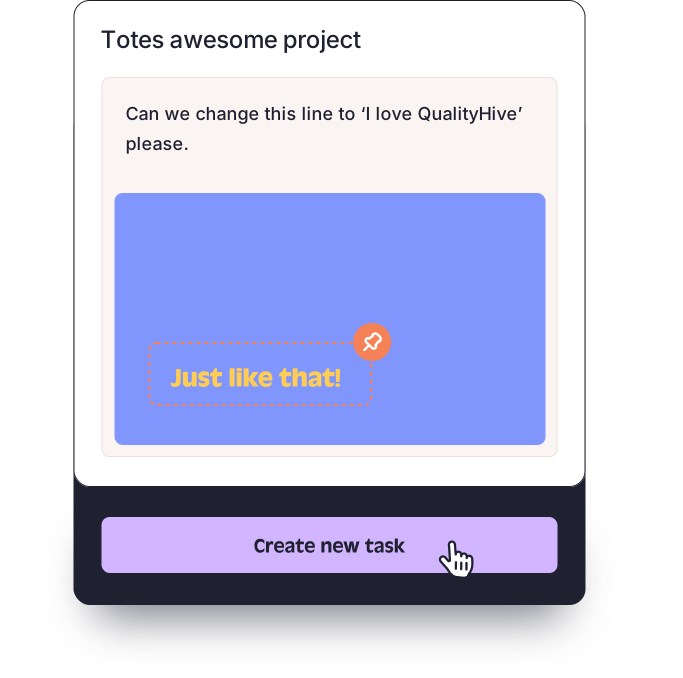
A task is created with a screenshot, which you can annotate, and the exact element pinned.
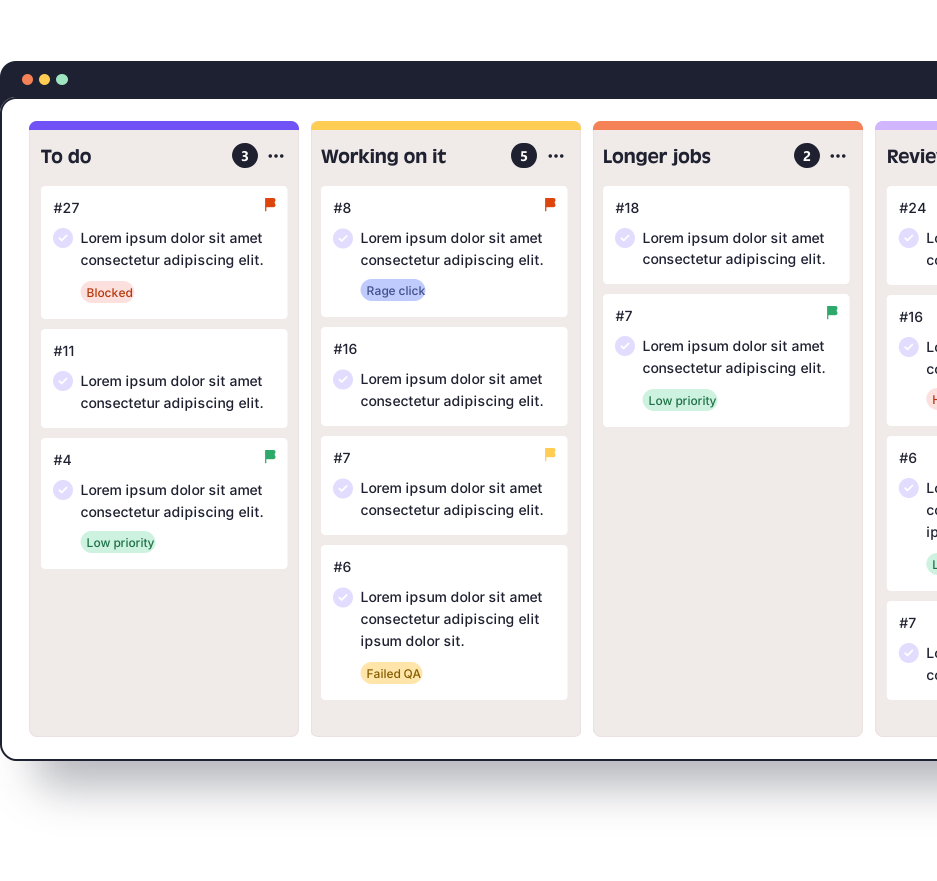
The task appears on a real-time Kanban board, where your team can filter it, work on it and mark it complete.
The screenshot capture happens for you, so the person giving feedback never has to switch to another app, crop an image and attach it somewhere.
Three ways to start annotating
Method | Best for | What it needs | Plan |
Script in the site's head, or Google Tag Manager | Sites you can edit | Access to the code or tag manager | Free and above |
Browser extension | Reviewing a site without changing it | Chrome, Firefox or Edge | Free and above |
Guest link | Clients and stakeholders | One link, with no login or install | Lite and above |
Guest feedback is the option built for client reviews. A guest does not use a seat, and the widget is invisible to the public unless they have the link.
The guest link loads the site inside a frame from app.qualityhive.com, so sites with strict X-Frame-Options or Content Security Policy headers need to allow app.qualityhive.com and connector.qualityhive.com. On hosted platforms where you cannot change those headers, Shopify in particular, use the widget script or the browser extension instead.
What makes a good annotation
The tool records the where, and the person writing the note still has to supply the what. One issue per note, what you can see, what you expected. If you are asking clients to annotate, send them this guide on how to give website feedback before they start.
QualityHive annotates web pages. If the page does not exist yet, comment on the mockup in your design tool, where the designer is already working. If you are marking up a PDF or a printed proof, a PDF tool will do that better. And if you want to weigh up the options side by side, read our round-up of website annotation tools, which is upfront that QualityHive is our own product.